Curriculum
TD Snap with AssistiveTouch
TD Snap with AssistiveTouch
0/2

Video lesson
Exit TD Snap to use AssistiveTouch
Watch the video above, or follow along with the written instructions below:
If you’re using TD snap on the TD pilot device, you might want to know how to easily move from your communication software to the environment of iPad OS apps.
0:20– Leave TD Snap
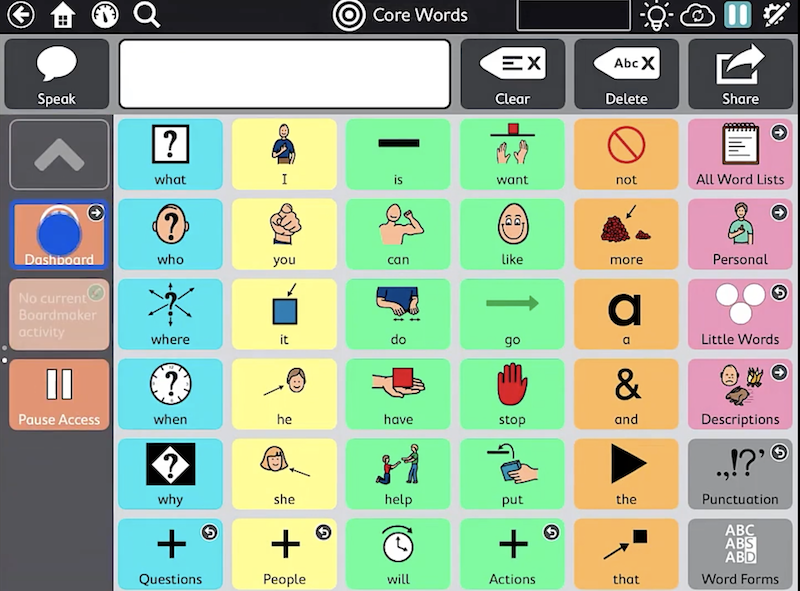
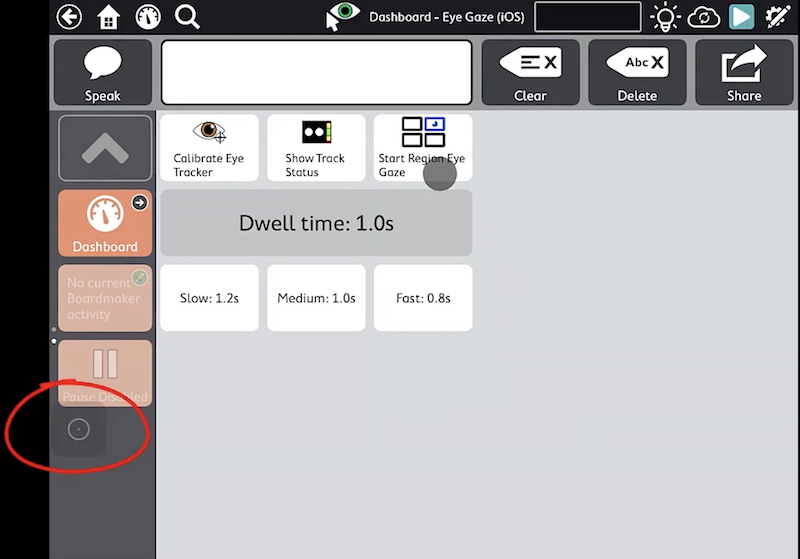
To leave TD snap, first select your dashboard.
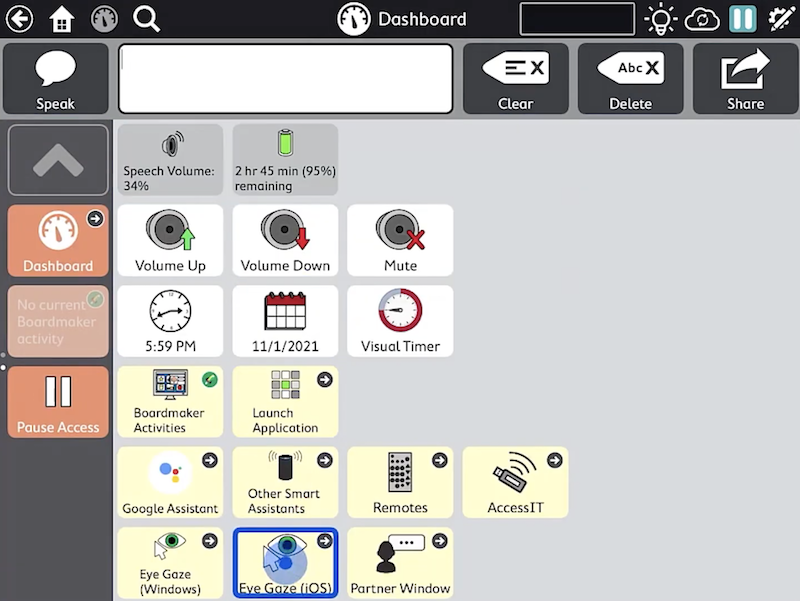
Next, Select eye-gaze iOS,
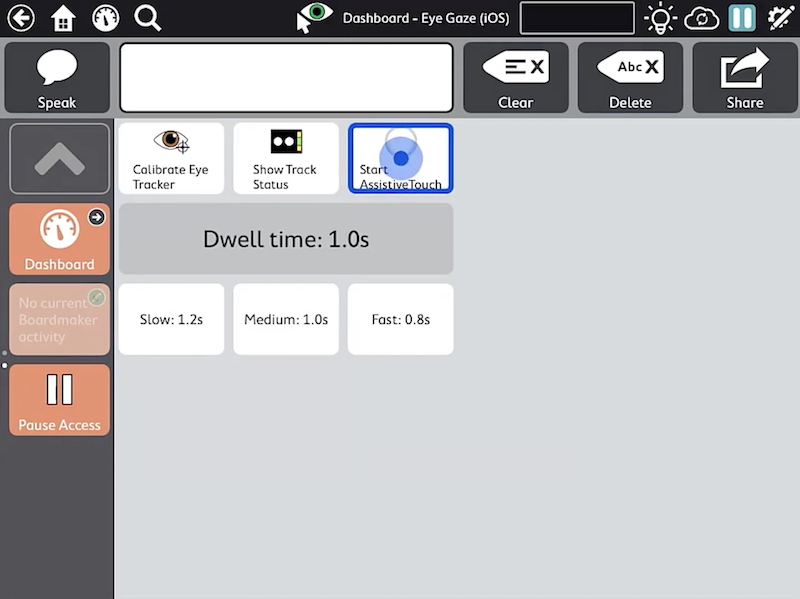
and select Start Assistive Touch.
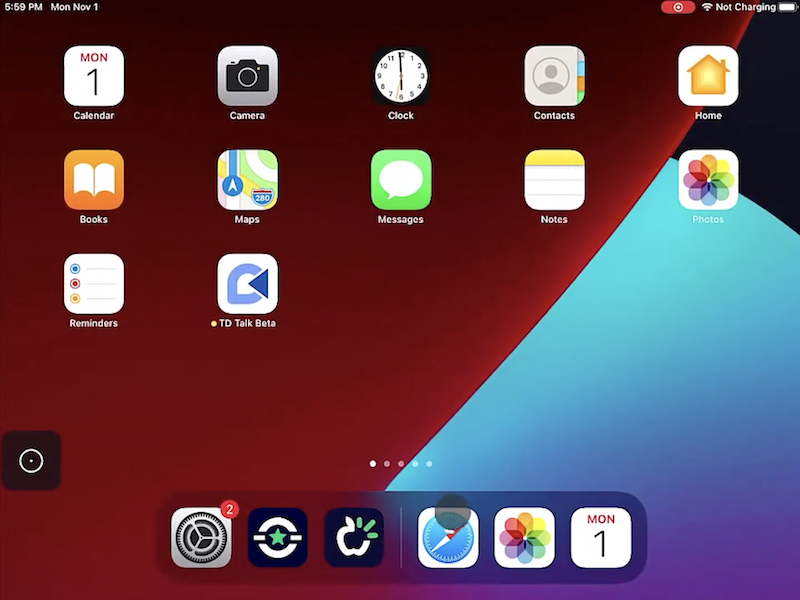
This places the Assistive Touch menu button onto your screen to access your home screen.
Select the Assistive Touch menu button and choose Home.
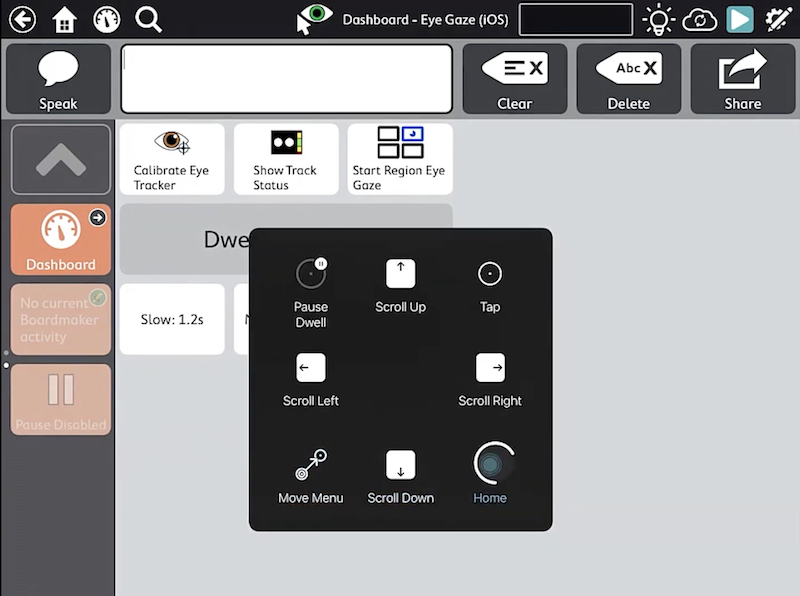
You’re now using Assistive Touch. Use the Assistive Touch menu to perform the actions you want as you explore your device.