Curriculum
TD Snap with AssistiveTouch
TD Snap with AssistiveTouch
0/2

Video lesson
Return to TD Snap from AssistiveTouch
When you’re ready to get back to communicating, you have a few options depending on the tools you have available within your Assistive Touch menu.
0:17– Option 1: open TD Snap from the desktop
The first option is to select the menu button.
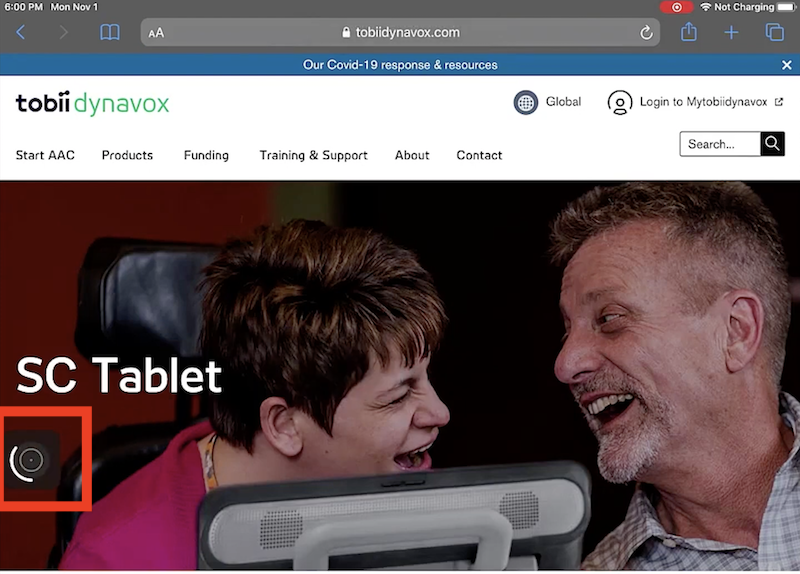
Then select home.
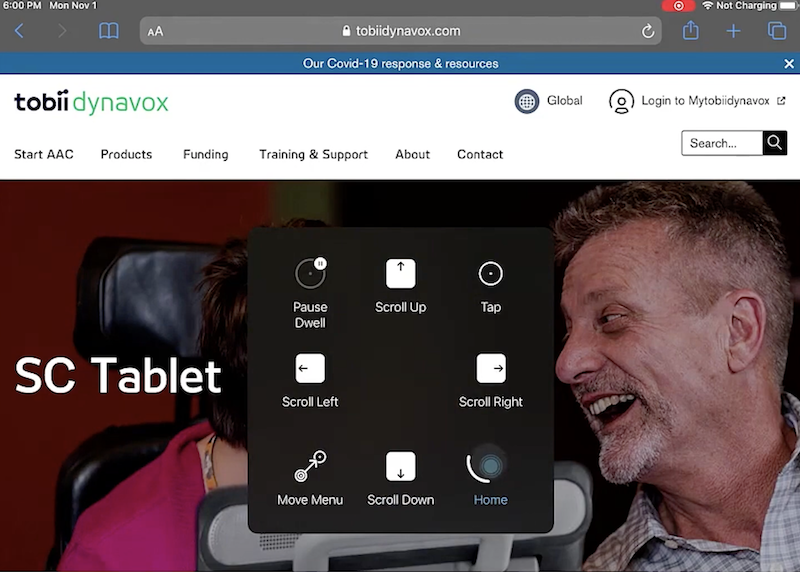
And locate your TD snap icon.
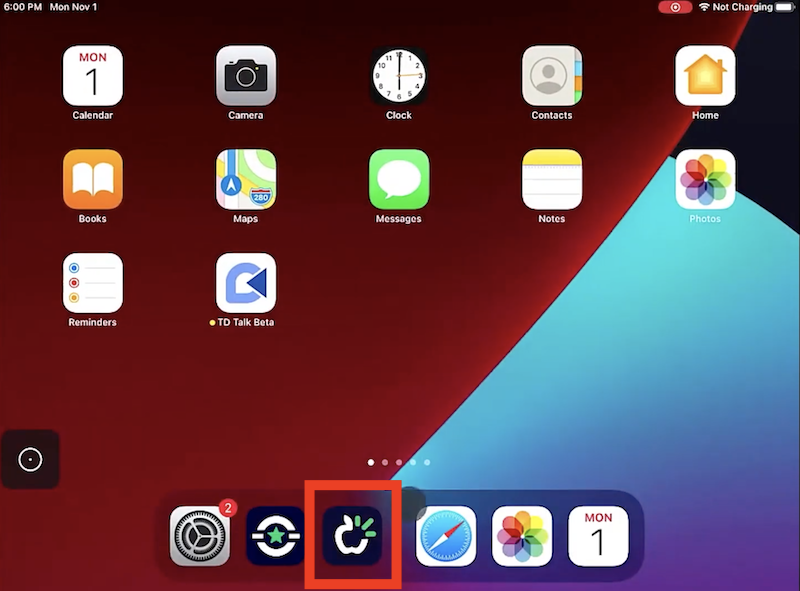
0:36– Option 2: app switcher
The other option, if it’s part of your Assistive Touch menu setup, is to select the menu button and choose App Switcher.
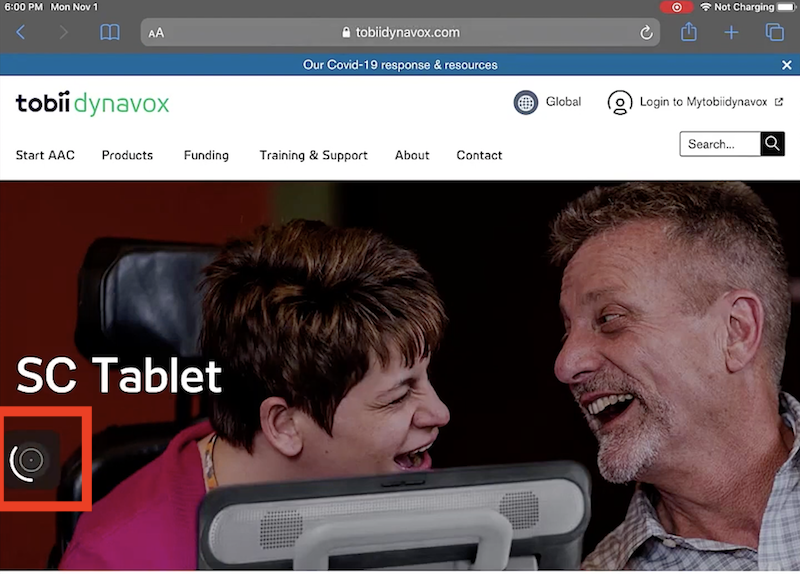
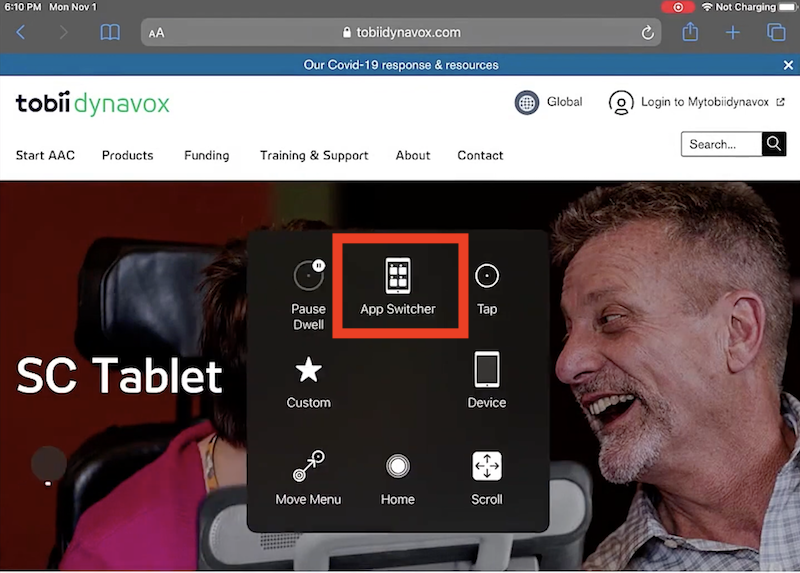
Then select snap from your running applications.
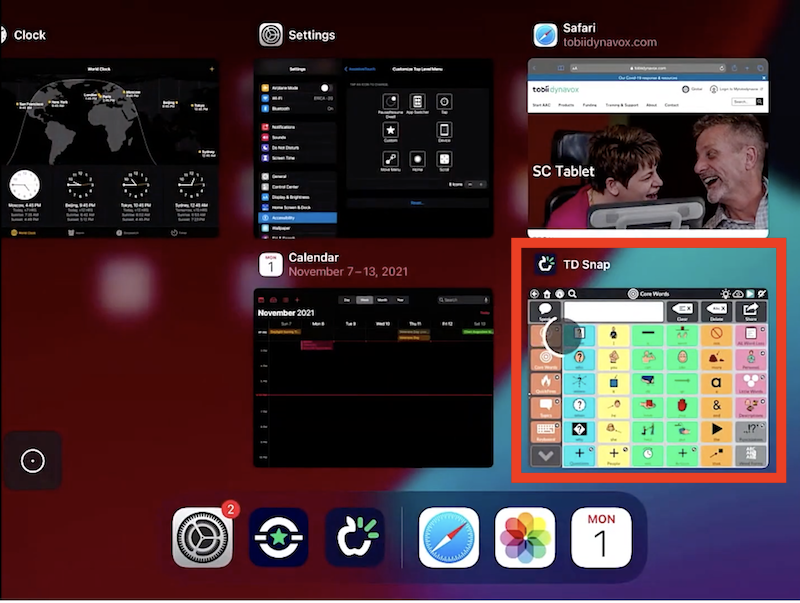
When you open your communication software TD Snap will resume eye tracking, providing you with a supportive eye gaze environment.
