Curriculum
Aphasia Duo - Getting Started
Aphasia Duo - Getting Started
0/4

Change Pictures & Symbols
Watch the video above, or follow along with the written instructions below:
Let’s look at how you can add phrases and change photos.
Another common place you’ll need to personalize in Aphasia duo are the “My Life” grids. So let’s do that now.
0:19– Edit the “My Life” grid
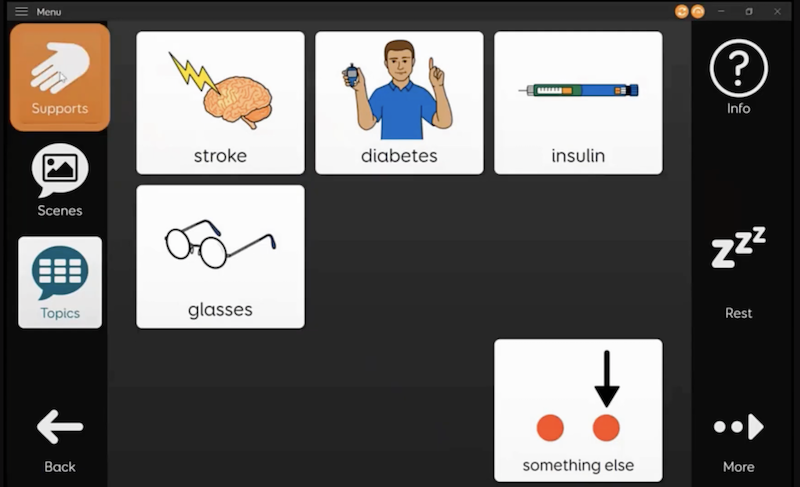
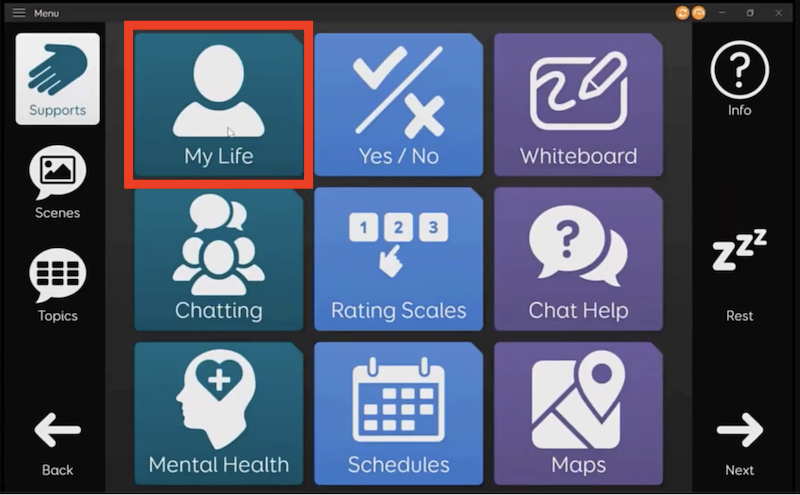
Click on “Supports”.
And then select “My life”.
0:20– Editing a Photo
Let’s edit one of the photo albums down at the bottom.
In this example, the person with aphasia would like an album to share information about their pet cat.
First I’m going to edit the jump.
To do this select the menu bar at the top.
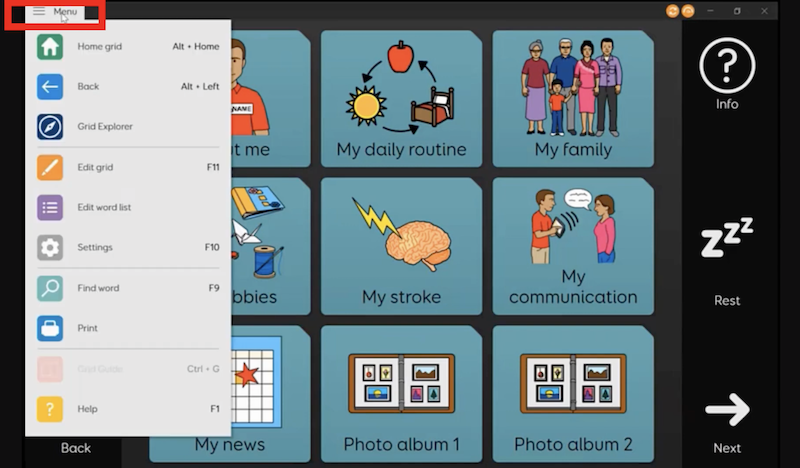
Choose “Edit Grid”,
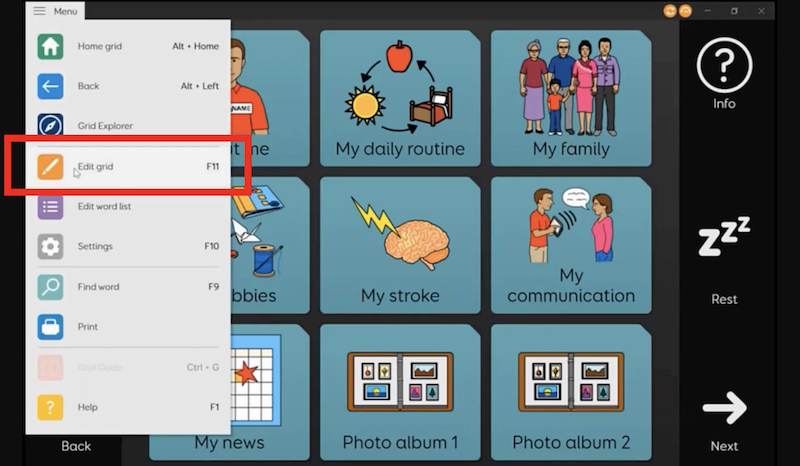
and then select the cell you want to change. In this case, Photo Album 1
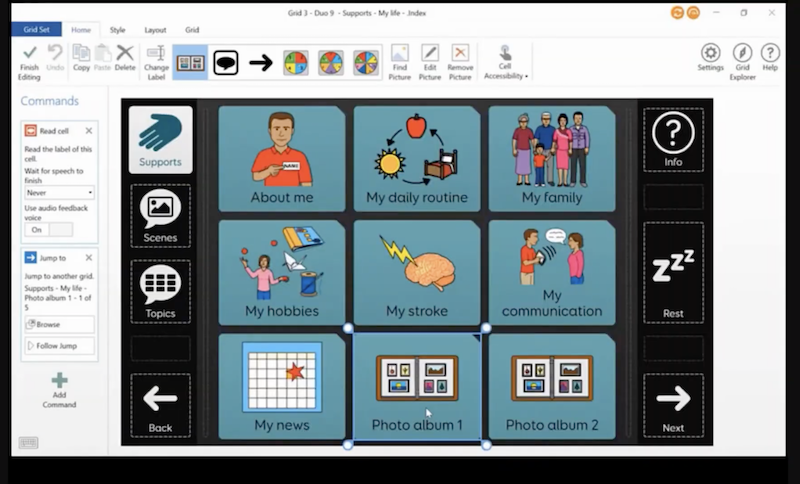
Select “Change Label” from the top menu bar.
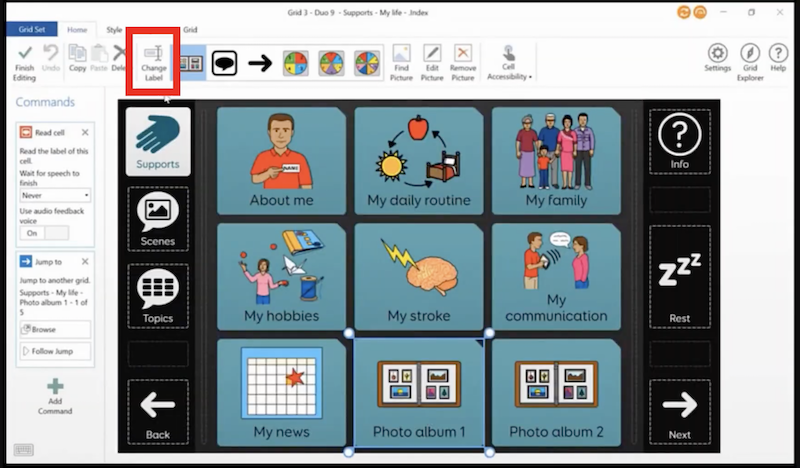
Type the name of the album.
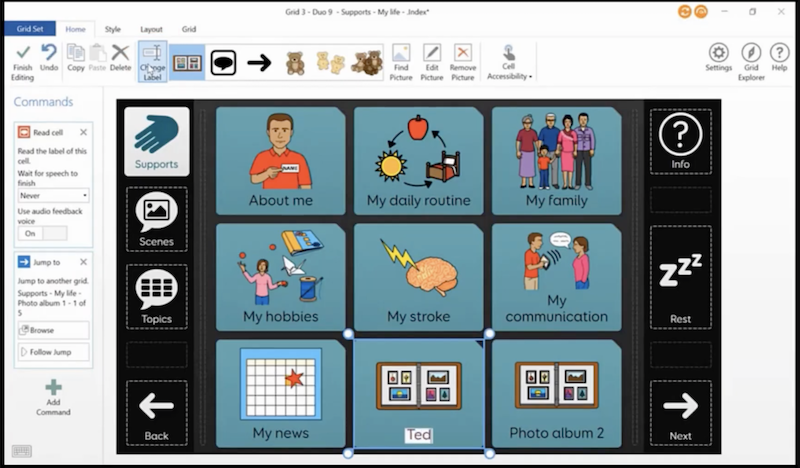
I can also change the picture on the cell again.
On the top bar go to find picture.
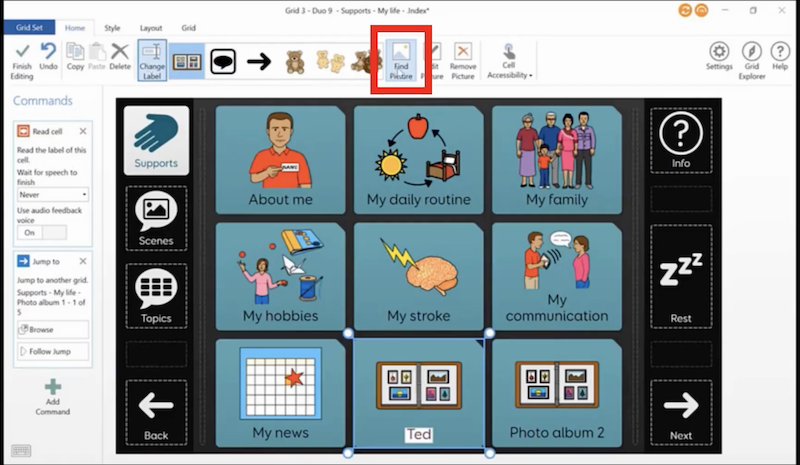
You’ll see some symbol options, but to add a photo that’s already on your device, go to “Picture File”.
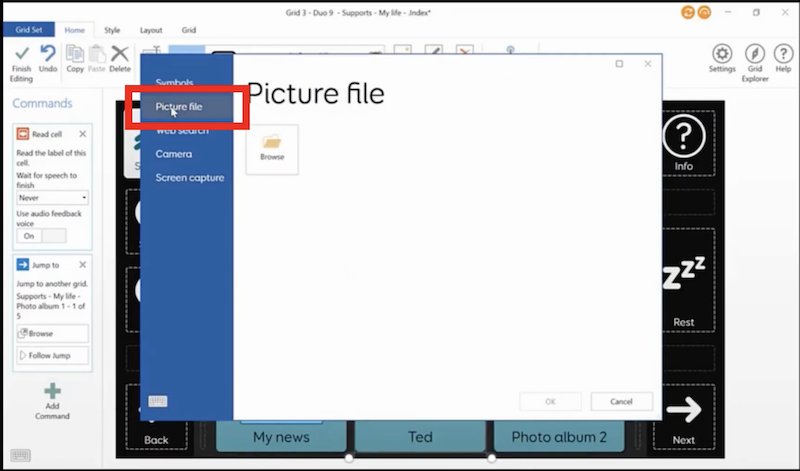
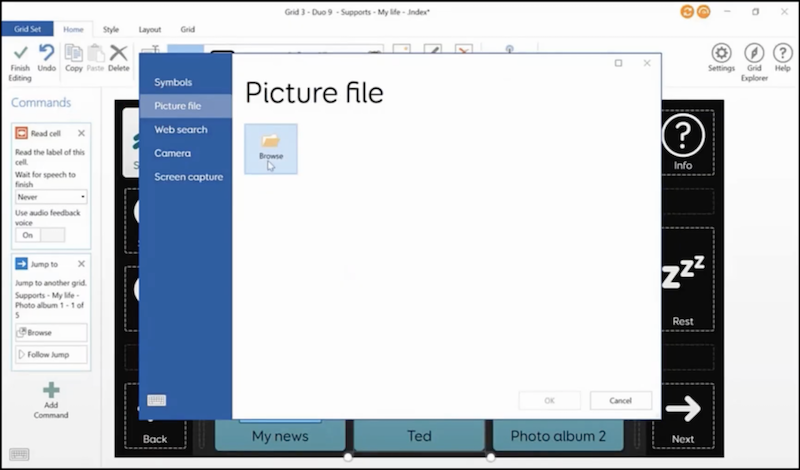
Select “browse” to find the photo that you want.
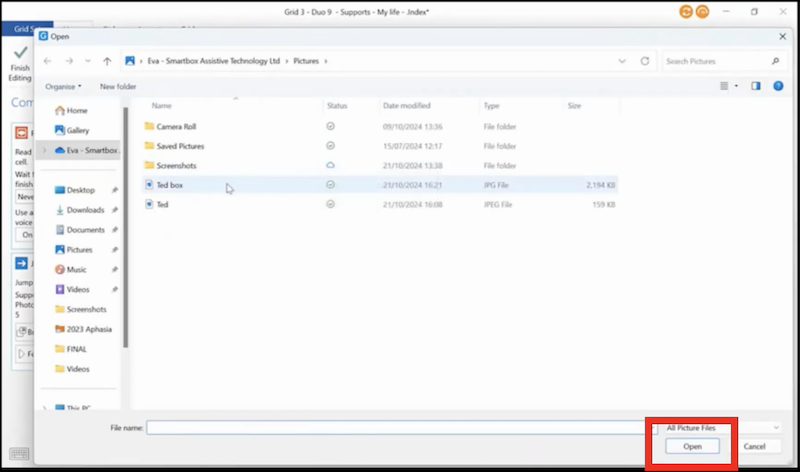
Double click the file you want to use, or select the file and click “open”.
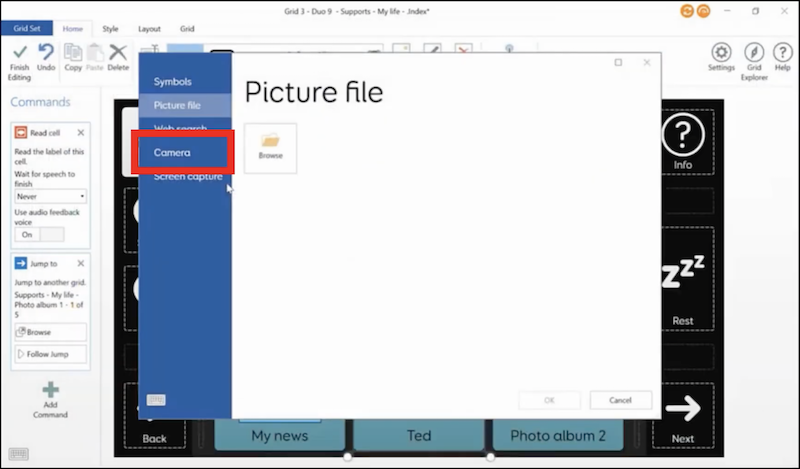
You can also use the camera on your device to take a photo, and this can be really helpful for taking photos of people or places.
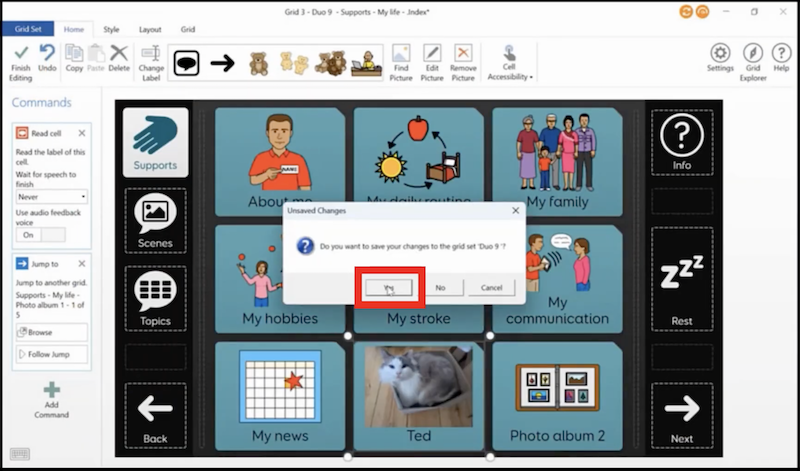
When you finished and you’re happy with the cell, let’s choose “Finish editing” in the top left corner.
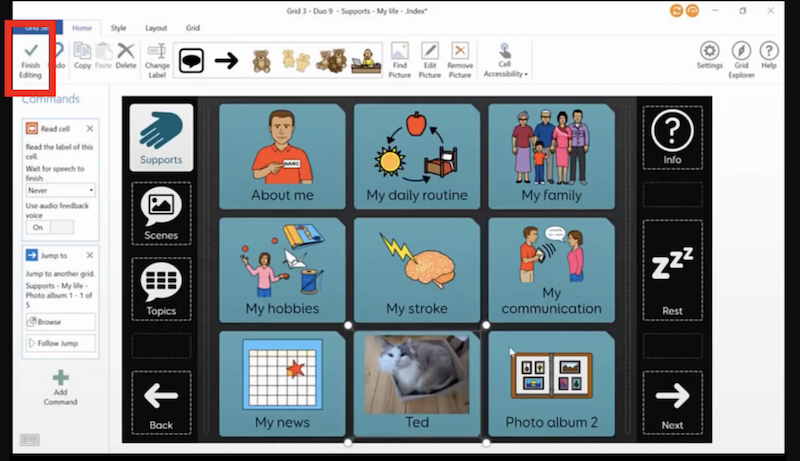
Click “Yes”.
And now let’s add some phrases to that album.
1:23– Add phrases
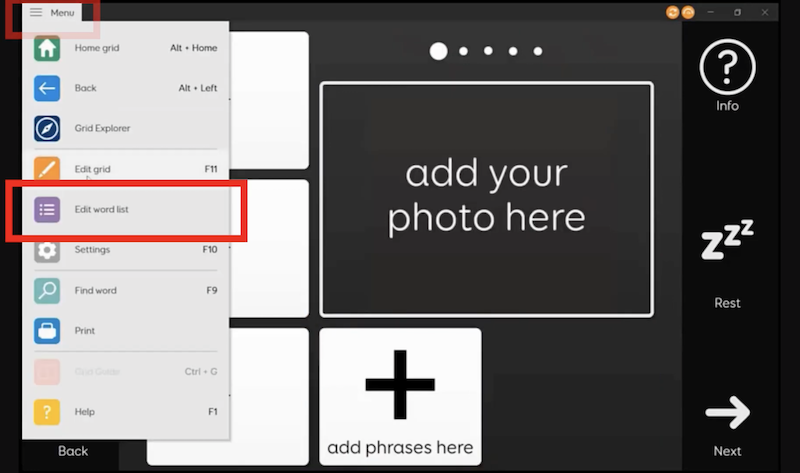
We’ll edit the Word List to do this.
Select the menu bar at the top of the screen, and then select “Edit word list”.
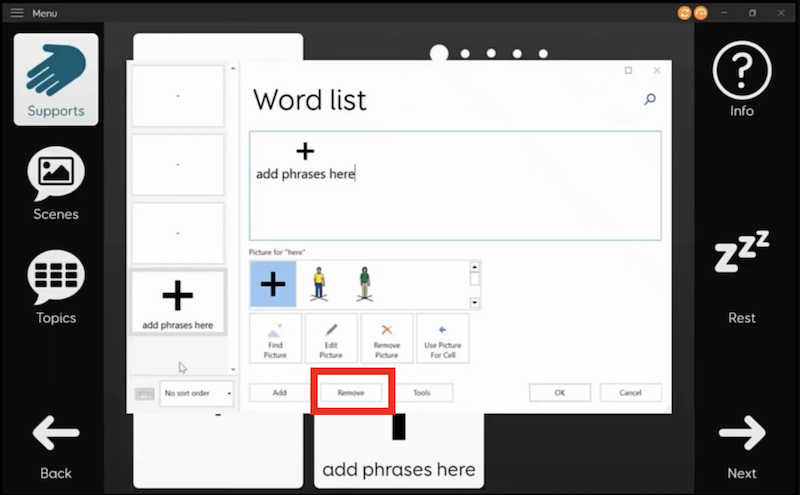
I’m going to start by removing things that I don’t want in my word list.
I can just click on “remove” to get rid of the empty cells.
Then choose “add” to add a few phrases.
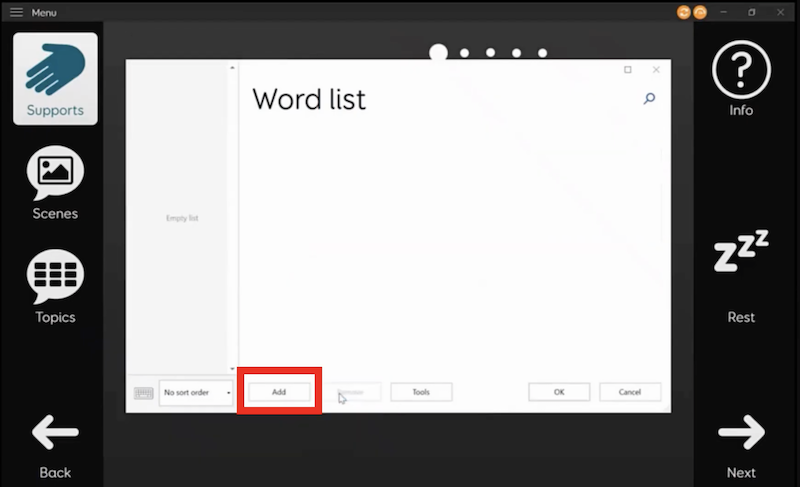
And I’m just going to use some symbols here, although I could use photographs if I wanted to.
Select “Okay”.
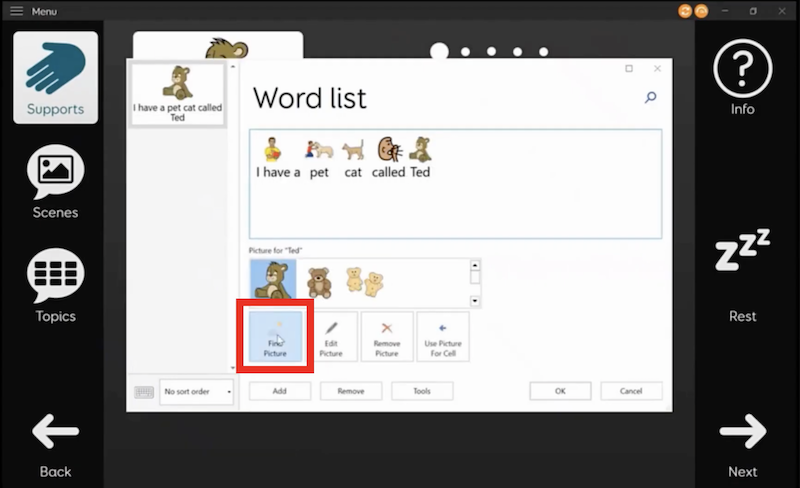
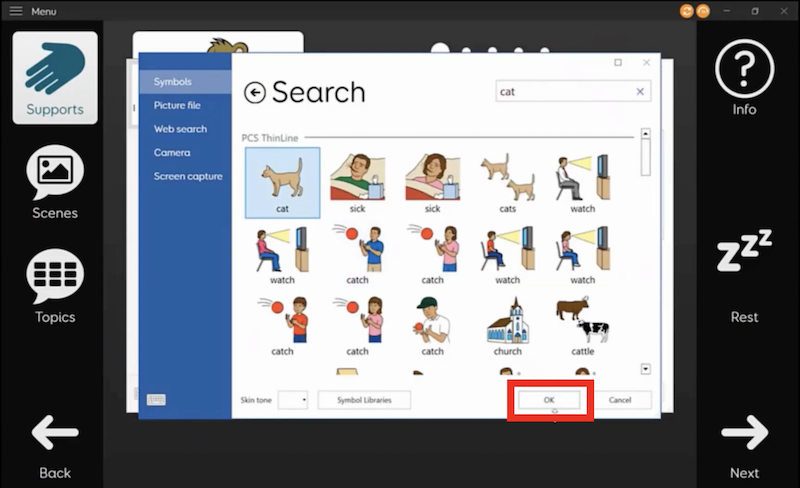
Choose an image, and select “OK”.
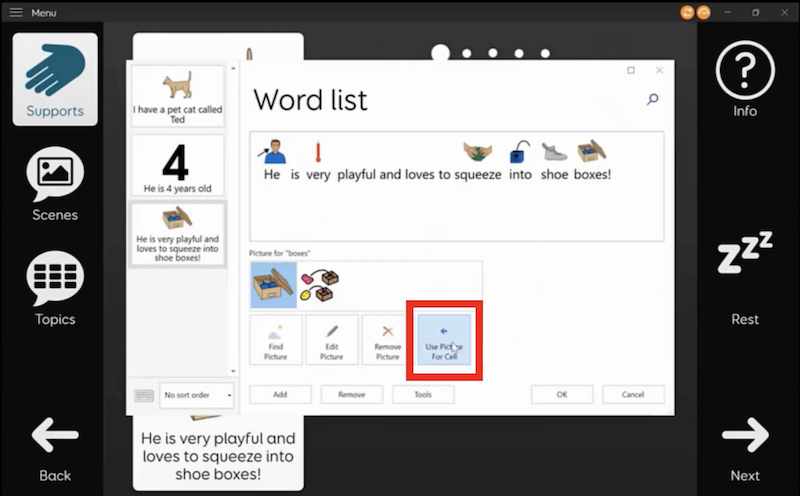
And then select “Use picture for cell”.
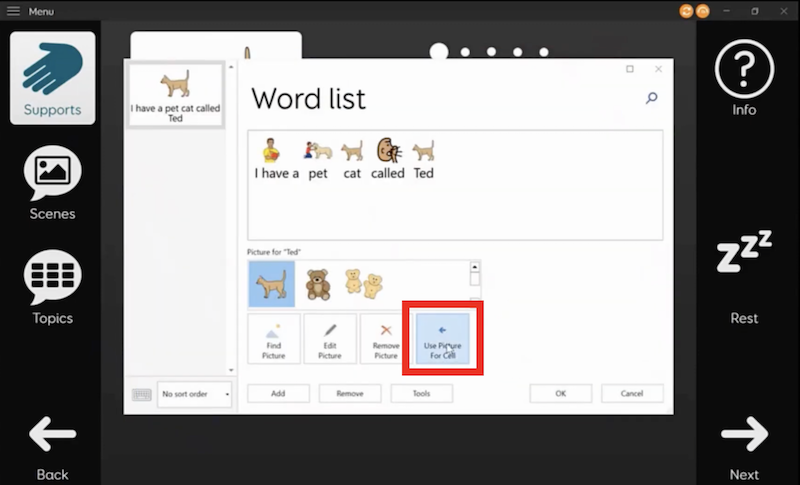
And that will make that the main symbol.
2:07– Adding more phrases
I’ll add one more phrase to tell people how old my cat is.
And the last one just to describe a bit more about him.
He’s very playful and loves to squeeze into shoeboxes.
Then select “find picture”.
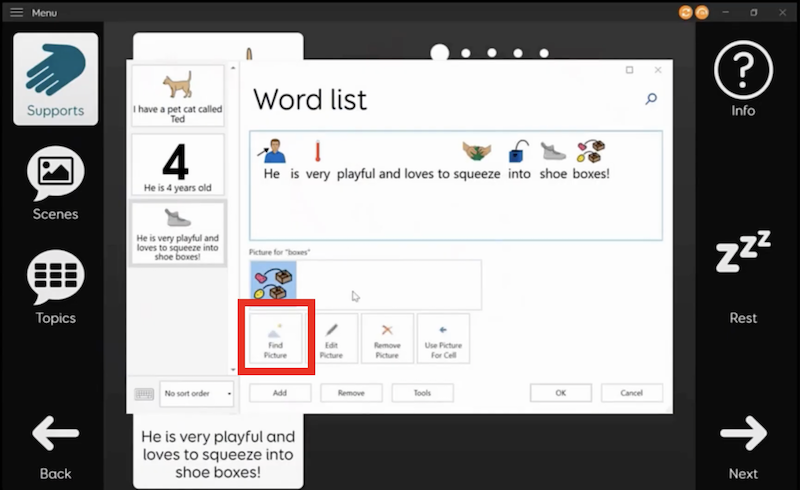
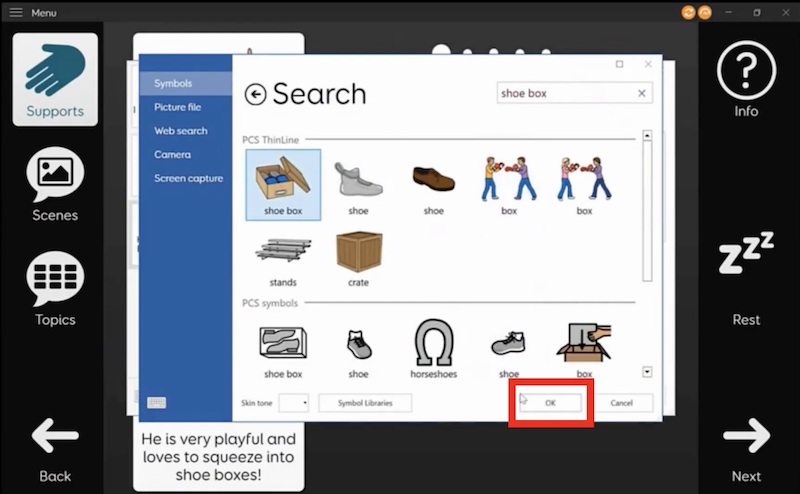
I’ll type something in the search to try to find a nice symbol for shoebox.
Click on “okay”.
Select “use picture for cell”.
and click “okay” to finish.
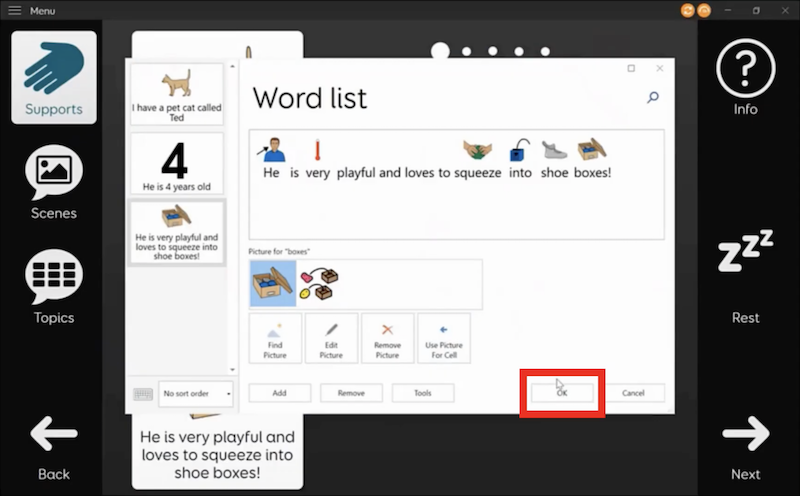
So there I’ve got three phrases with my choice of symbols.
Now I want to edit the main photo.
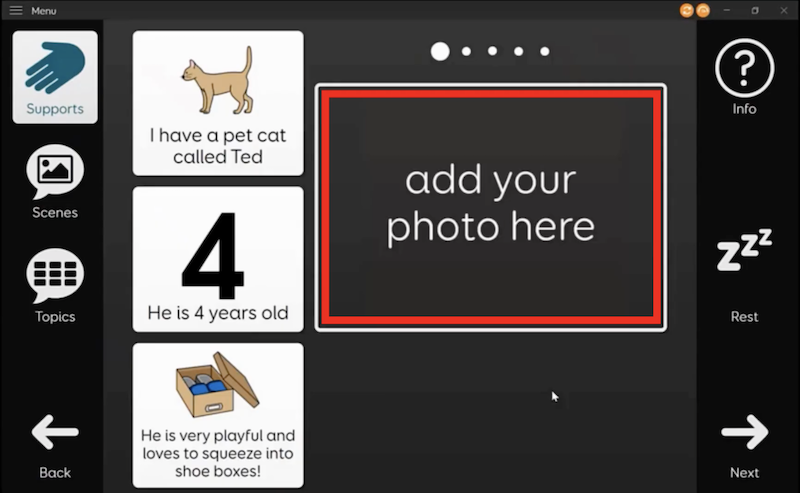
I’m going to make that photo the same as the one that was on the jump cell to get here because that’s going to be a really helpful reminder for what is on the grid.
I’m going to go to the menu bar and select “Edit Grid”.
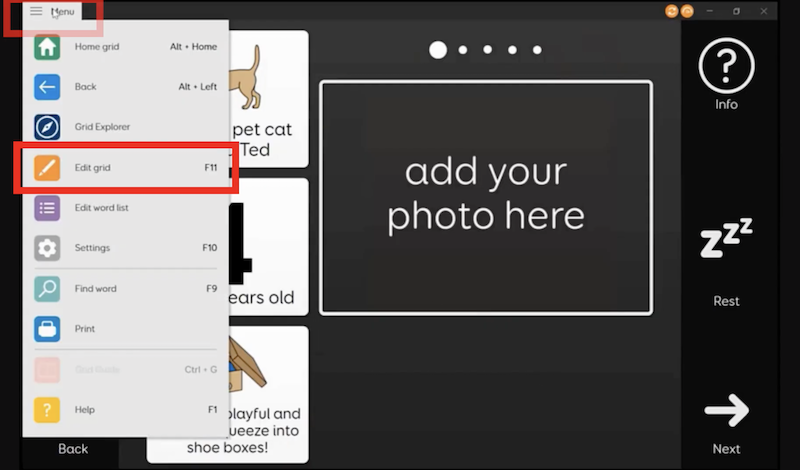
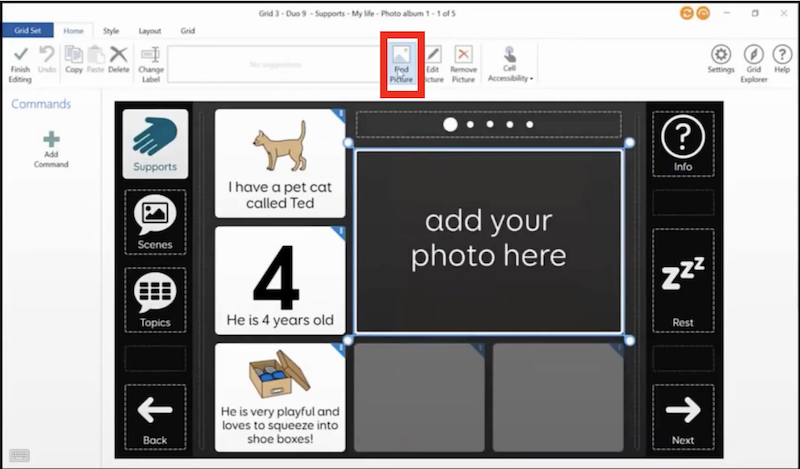
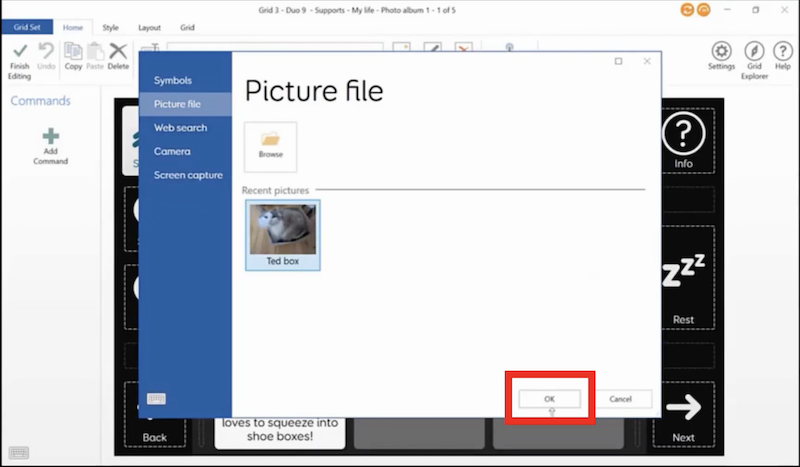
Select the cell I want to change, and just as we did before go to “find picture”. Select “Picture file”.
And there is the picture that I’ve just used.
Click on “okay”.
And there it is. When I finished editing I can choose yes to save those changes. Personalization is really important for allowing someone to talk about the things which are most meaningful and motivating for them. And as you can see, it doesn’t take long to do.
