Curriculum
Communicator 5 - Getting Started
Setting Up Communicator 5
0/5

Speaking with Communicator 5
0/5
Updating your Device
Watch the video above, or follow along with the written instructions below:
The Communicator 5 Update Notifier allows us to make sure that the communication software is up to date.
0:05– Find the Update Notifier App on the Desktop
The Update Notifier can be found on the Windows Desktop.
There are a few ways to access the desktop. For this example, we’ll use the “Windows Mouse Vertical”, located on the main page of Communicator 5.
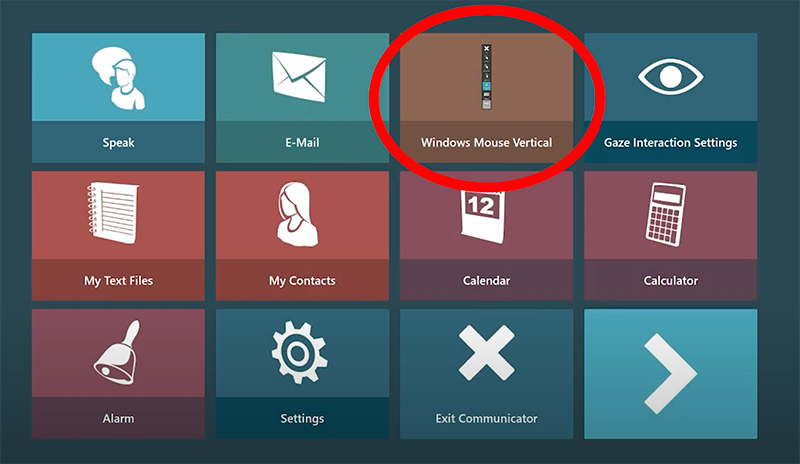
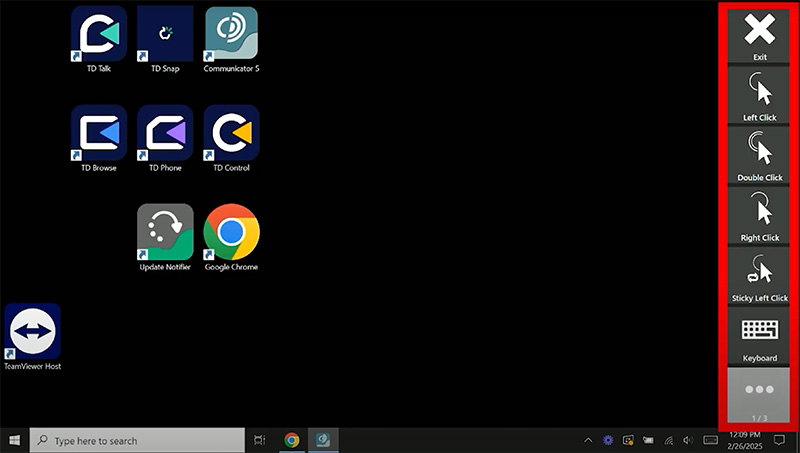
After it is selected, we are brought to the desktop and will see a black vertical bar with a few mouse commands on the right side of the screen.
0:33– Open the Update Notifier App
On the desktop, we are able to see an icon called Update Notifier. This application allows us to check if there are Tobii Dynavox updates available. To make sure your system is up to date, we recommend running the application once a week.
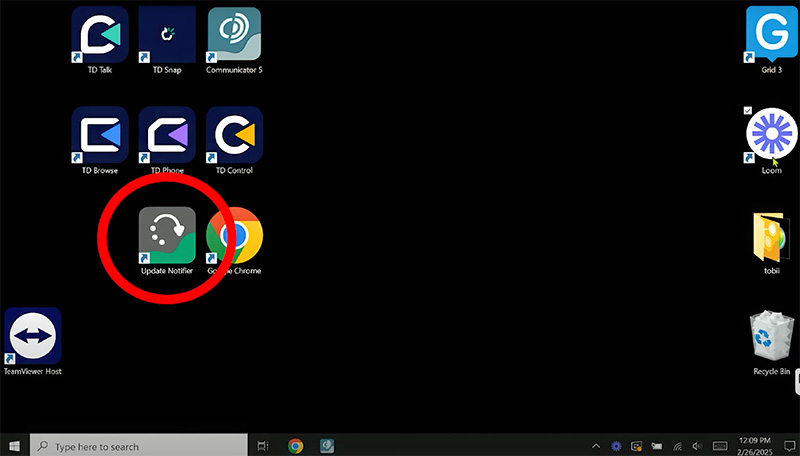
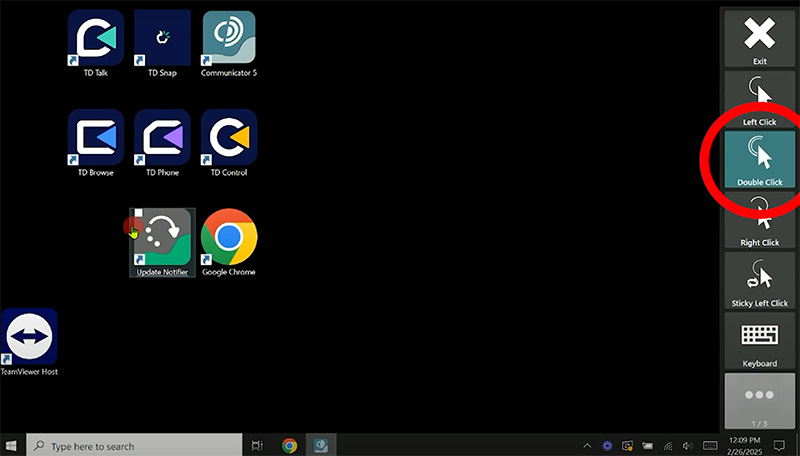
To open the update notifier, select the “Double Click” option from the “Windows Mouse Vertical” and then select the update notifier icon.
0:57– Check for Updates
When the Update notifier is opened, it will perform a scan to see if there are new updates available for your software. You can then either choose “done” if there are no updates, or run an update.
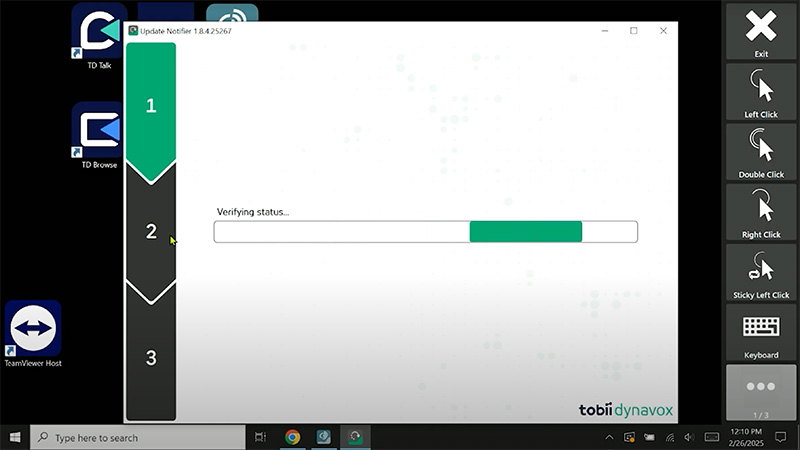
You can close the update notifier once all the updates have finished.
