Curriculum
Communicator 5 - Getting Started
Setting Up Communicator 5
0/5

Speaking with Communicator 5
0/5
Calibrating Eye Tracking
Watch the video above, or follow along with the written instructions below:
When you first set up your device, it is important to calibrate the eye tracker. If you wear glasses, make sure you calibrate with your glasses on.
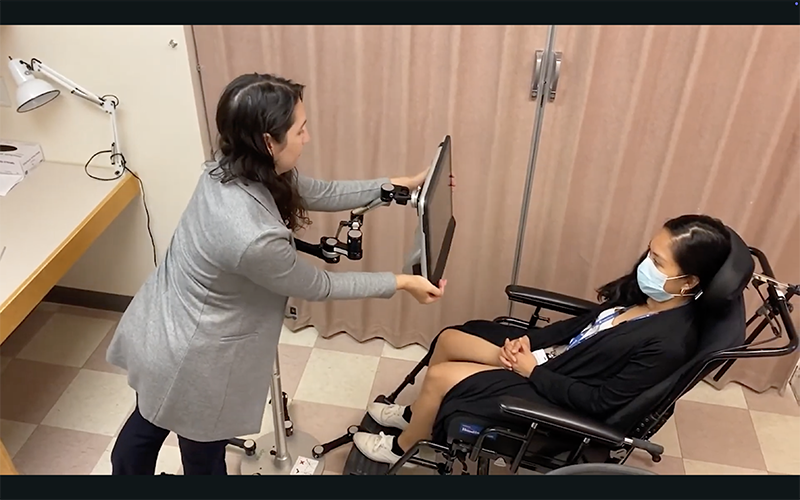
0:09– Position the Device
With the device properly positioned in front of the user, you can calibrate the eye tracker.
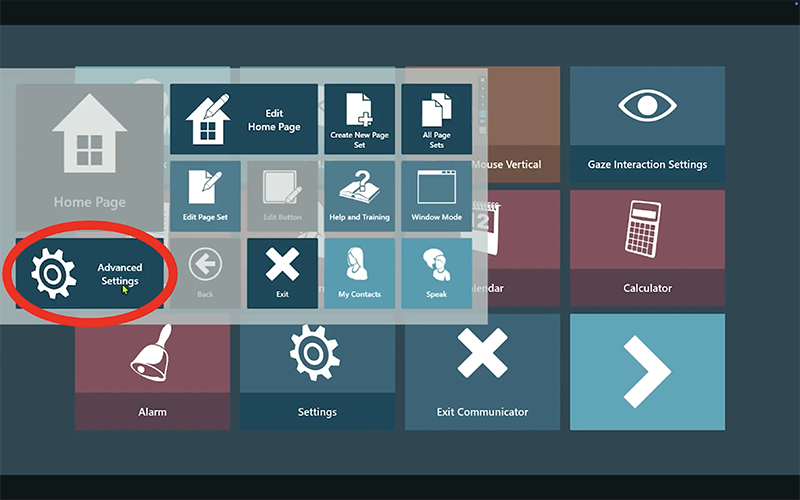
0:19– Navigate to Gaze Interaction Settings as a Caregiver
In communicator 5, a caregiver can right-click anywhere to bring up the Caregiver Menu. Select Advanced Settings.
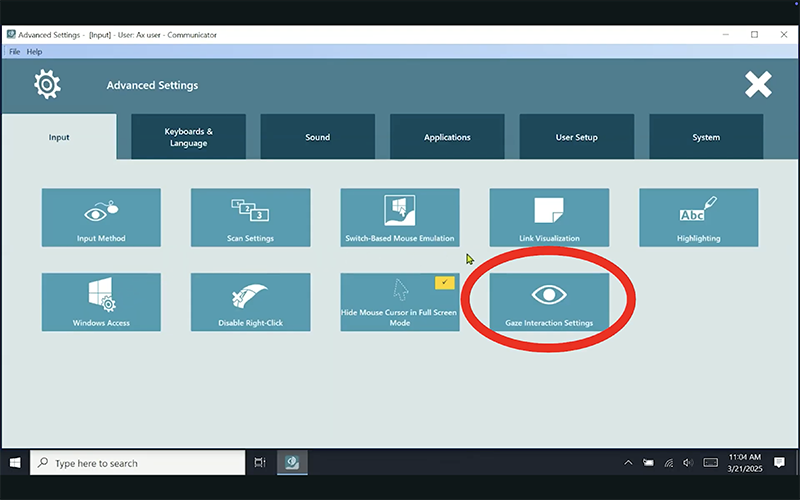
Next, select Gaze Interaction Settings.
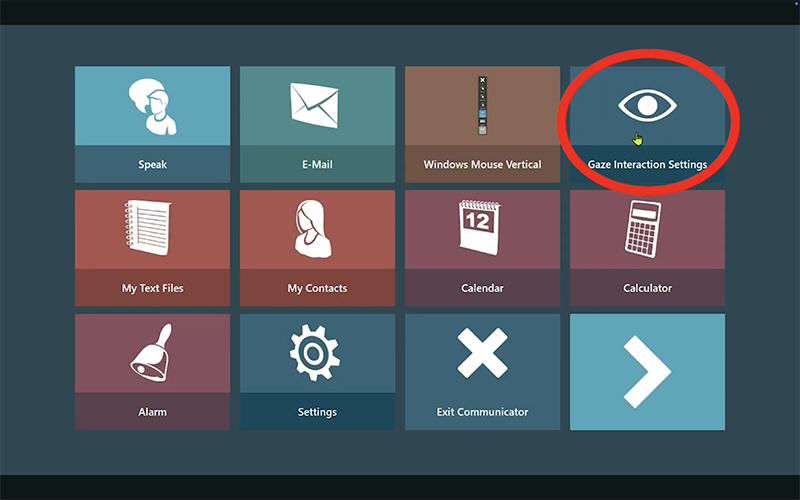
0:30– Navigate to Gaze Interaction Settings Using Eye Gaze
Alternatively, find the button on the main page called “gaze interaction settings”. This is eye gaze accessible.
0:36– Select a Profile
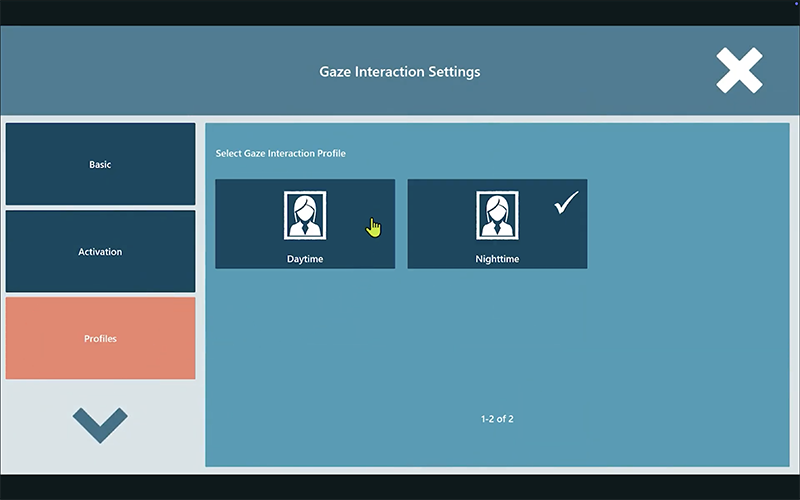
Here you can select profiles.
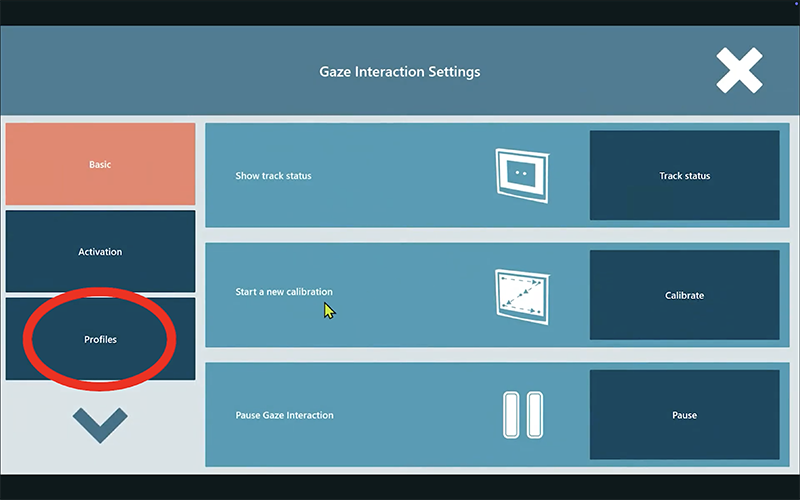
Some users may only need one calibration profile. Because eyegaze works by tracking the infrared light reflected from the user’s eyes, some users may find better success having one profile for daytime and one for nighttime to facilitate different lighting conditions.
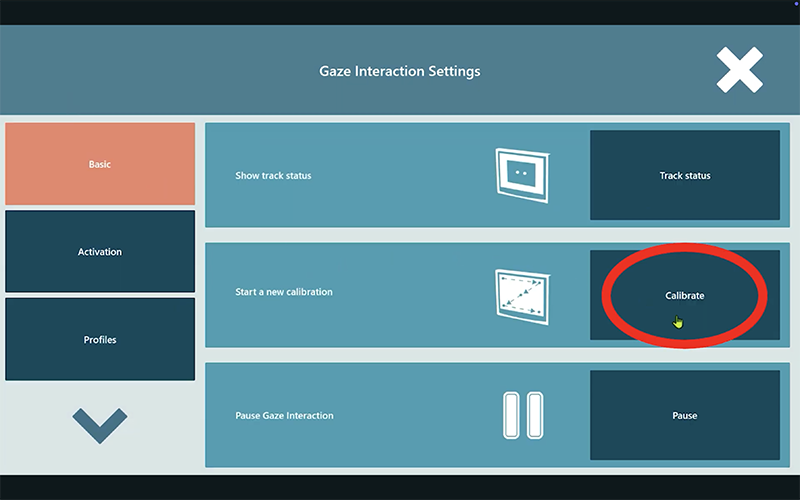
1:00– Calibrate the Eye Tracking
Go back to the Basic menu, and start calibration by clicking on the “Calibrate” button.
Then select “Start Calibration“.
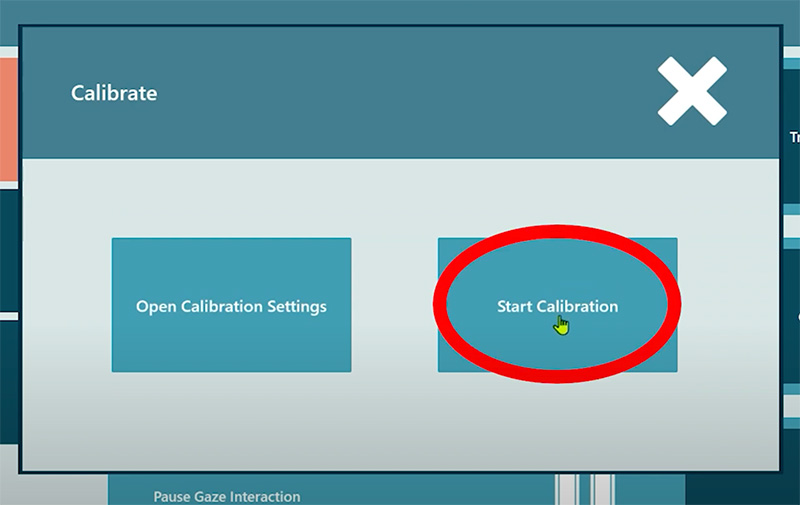
You’ll be presented with markers on the screen. The user must look at the marker and follow the marker as it moves across the screen. The marker will pause at 9 points on the screen. Follow the marker with your eyes as it moves and as it pauses until the calibration process is complete. Try to move your eyes only, while keeping your head still.
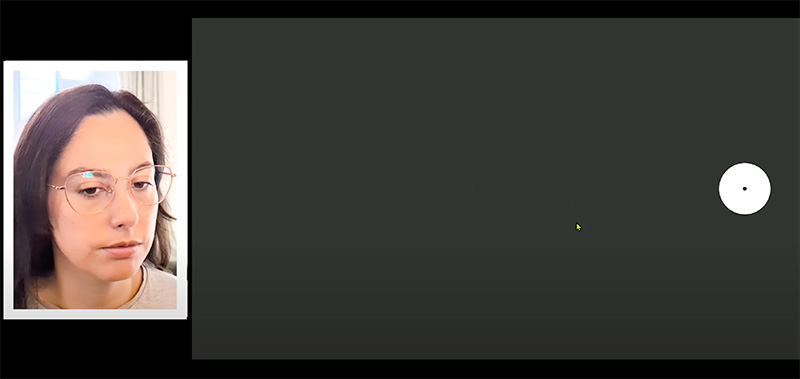
1:38– Recalibrate if Necessary
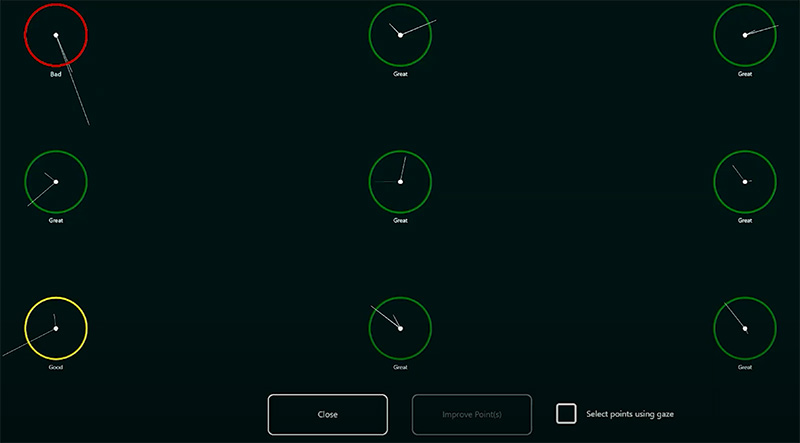
Once all 9 markers have been completed, the calibration results will be shown with each location showing a colored circle. Perfect calibration is not necessary to use eye tracking effectively. If the circle is green, the calibration results are great and as expected. If the circle is yellow, the calibration is good, although some points may need to be recalibrated if there are long deviations. If the circle is red, it means we have to recalibrate those locations.
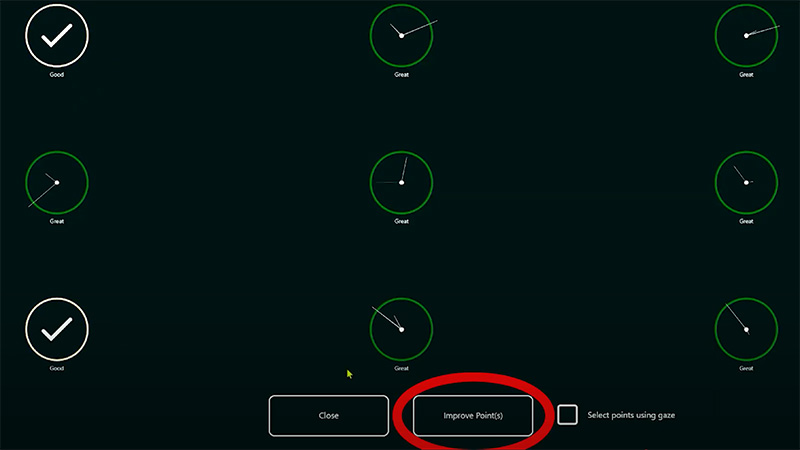
Select the locations you wish to recalibrate and click on “Improve Points”.
You may need to recalibrate your device from time to time. During use, you may find that the device is not tracking your eyes well, or that the mouse pointer is not where you expect it to be. You should recalibrate if this happens.
