Curriculum
Communicator 5 - Getting Started
Setting Up Communicator 5
0/5

Speaking with Communicator 5
0/5
Using the Partner Window
Watch the video above, or follow along with the written instructions below:
0:06– Understanding the Partner Window
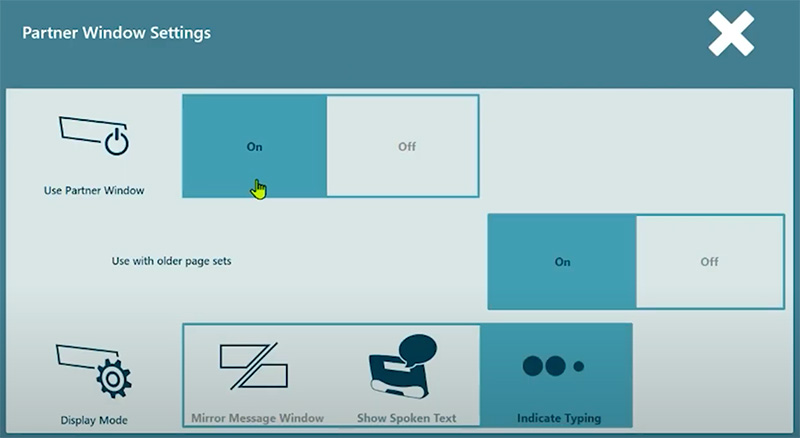
The Partner Window is an LCD screen on the back of the device that allows people to see the user’s messages. The user can choose between three different modes:
- 0:16– Mirror the message window – the Partner Window shows all the messages as it is being written.
- 0:21– Show spoken text – the Partner Window shows the message after the user presses the speak button.
- 0:28– Indicate typing – the Partner Window shows three animated dots to indicate that the user is typing something.
0:35- Navigating to the Partner Window Settings
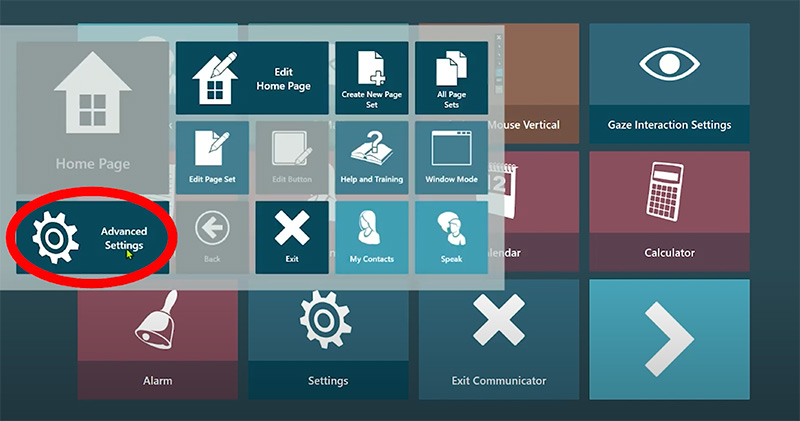
To change the way the partner screen functions and to turn it on or off, we need to access the Advanced settings. Press and hold anywhere on the main menu to access the caregiver menu, then click on “Advanced settings“.
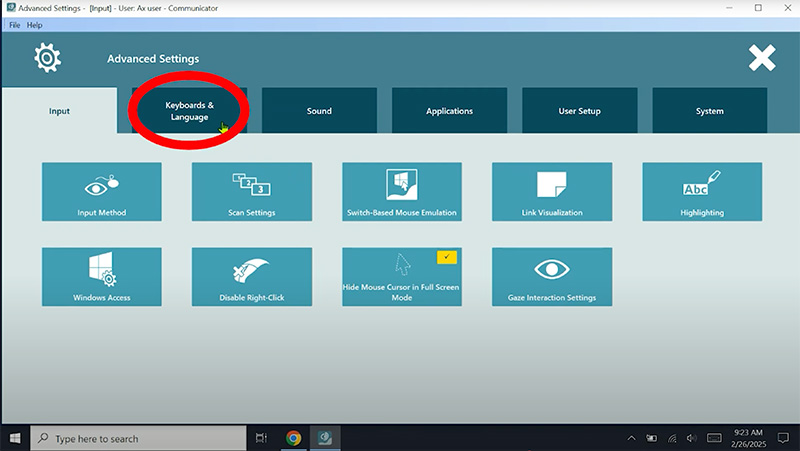
Next, select the “Keyboard & Language” tab at the top of the Settings screen.
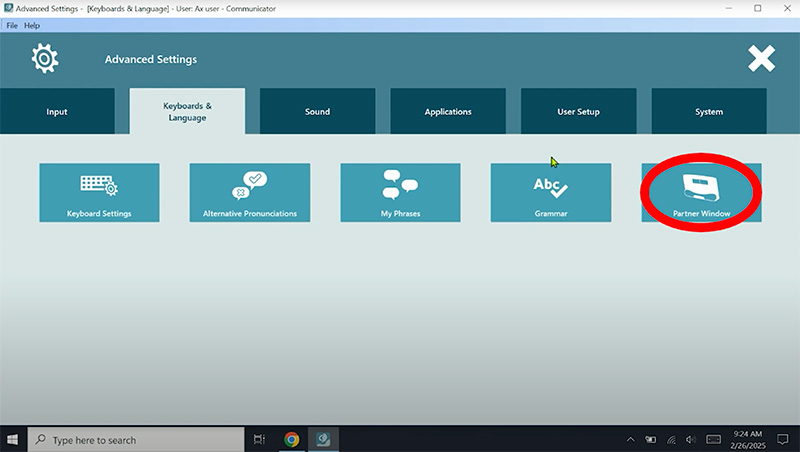
Lastly, select “Partner Window” to access the Partner Window Settings.
1:02– Adjusting the Partner Window Settings
There is a toggle to turn the partner screen on or off, and just below that we can choose between the three modes.