Curriculum
TD i13 and i16 - Getting Started
Getting Started with your TD i13 or i16 Device
0/8


Video lesson
Connecting to WiFi
Watch the video above, or follow along with the written instructions below:
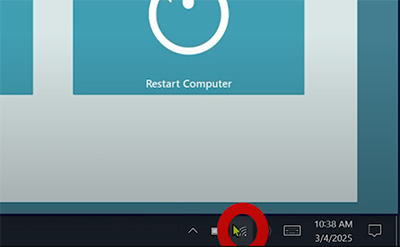
0:07– Navigate to the Windows Task Bar
Navigate to the windows taskbar. You’ll find the Wi-Fi icon in the bottom right in the task bar.
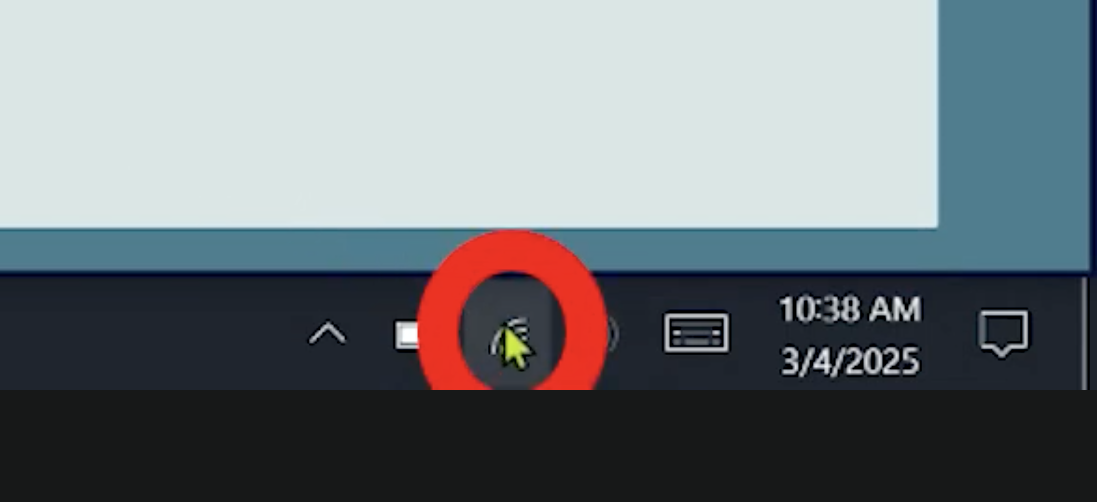
0:16– Bring Up the Wi-Fi Menu
Click on the Wi-Fi icon at the bottom right of the screen, in the Task Bar.
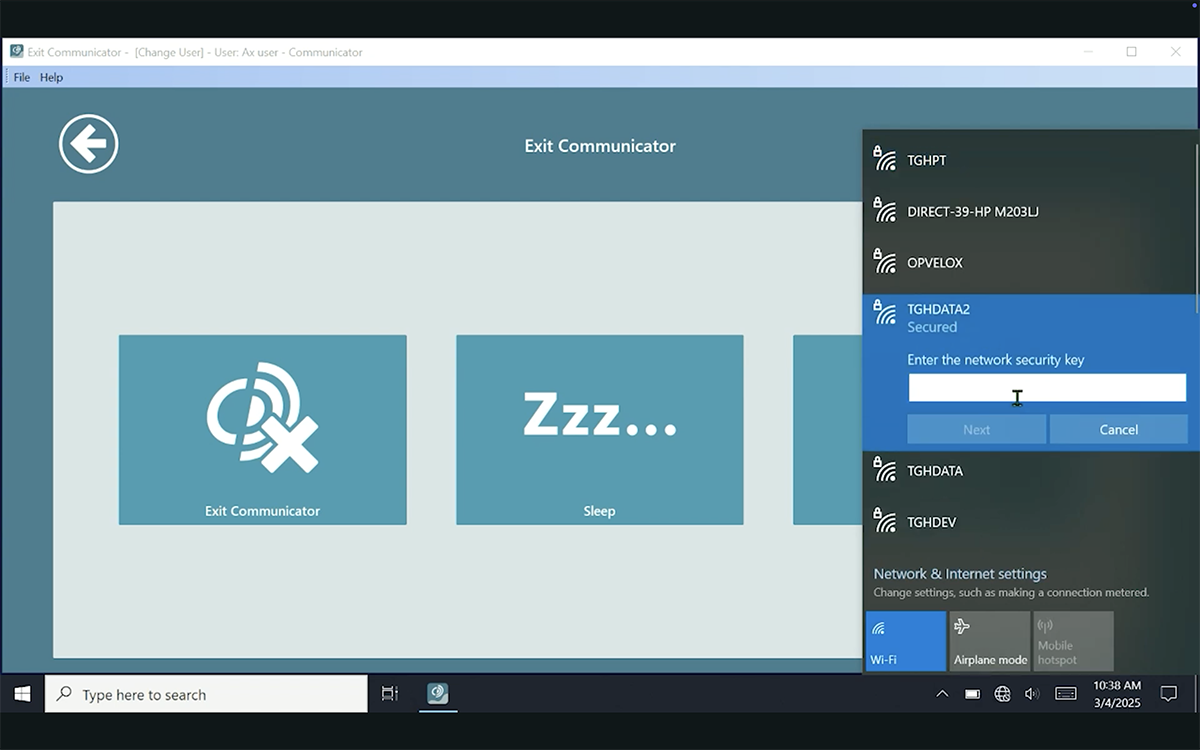
0:21– Connect to Your Network
Select your network from the list of discovered Wi-Fi providers. Fill in the password and click next. Wait for the connection to be made. Once the connection is made, you’re online and ready to use the internet.