Curriculum
TD i13 and i16 - Getting Started
Getting Started with your TD i13 or i16 Device
0/8


Video lesson
Customizing Adaptive Buttons
Watch the video above, or follow along with the written instructions below:
0:05– Navigate to the Tobii Dynavox Hardware Settings
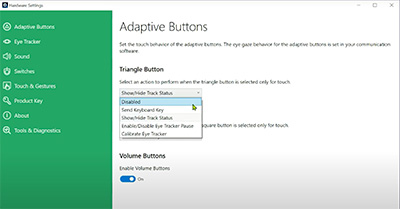
To change the Adaptive Button’s behaviour, navigate to the “Tobii Dynavox Hardware Settings” icon on the desktop.

0:12– Changing the Triangle and Square Button Functions
You will find options to change the triangle and square button functions. You can disable the button, or execute popular functions such as: Send Keyboard Key; Show/Hide Track Status, to check your positioning; Pause or resume eye tracking; or launch the eye tracking calibration.
0:34– Disabling the Volume Buttons
The volume buttons located on the right side are not customizable, but you can disable them in the settings if you prefer.
