Curriculum
TD i13 and i16 - Getting Started
Getting Started with your TD i13 or i16 Device
0/8


Play/Pause Eye Tracker
Watch the video above, or follow along with the written instructions below:
Sometimes you may want to look at the screen without engaging eye-tracking. This can be beneficial when you’re watching a movie, reading a book, or simply relaxing.
0:15– Activate the Pause/Sleep Menu
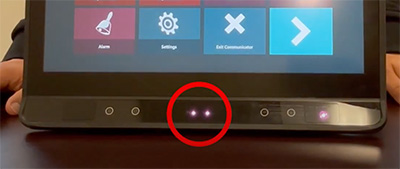
To activate the off-screen menu, look down at the eye tracking camera, where you will see some faint red light.
0:22– Pause Eye-Tracking
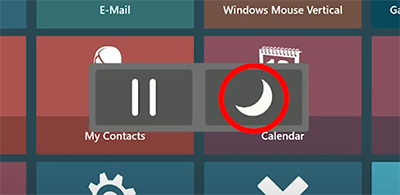
Two buttons will appear on the middle of the screen where you can play/pause the eye tracking or sleep the screen.
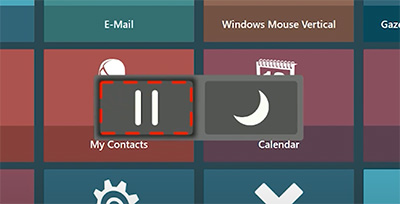
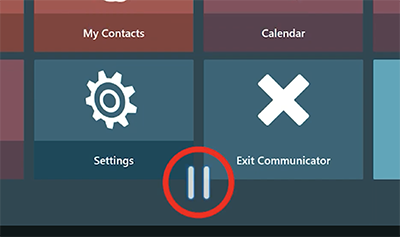
The Play/Pause button will pause eye tracking but keep the screen on. When the device is paused, there will be two white parallel lines at the bottom of the screen
0:45– Activate the Sleep Function
Use the moon icon to activate the sleep function. The sleep button will turn off the monitor until you look at the eye tracking camera again.